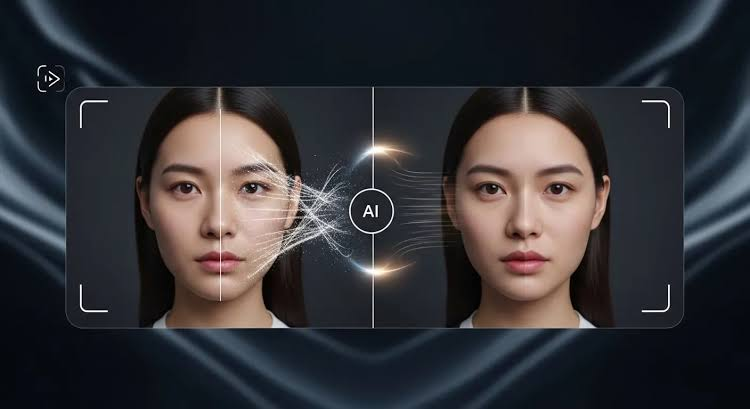
Anyone who has tried making AI character videos knows there are two completely different ways to get the shot. Older post-processing tools ask you to film a normal video first, upload the MP4 to a queue, and wait to see how it turned out, whereas a browser-based live swap face studio like LiveSwapFace renders the new face straight onto your webcam feed while you are still talking.
On paper, both methods end up with an MP4 file ready for TikTok, YouTube Shorts, or Reels. In actual daily use, the time difference between filming blind and watching a live monitor decides whether a sixty-second video takes ten minutes or eats your entire evening.
Looking closely at where retakes happen, how source photos behave, and when pre-recorded clips still have a place makes choosing between the two workflows straightforward.
The Hidden Retake Loop in Upload-and-Wait Tools
Post-upload face swappers look fast when you only count server rendering time. Waiting three or four minutes for a cloud queue to process a thirty-second clip sounds harmless enough on take one.
The slowdown starts as soon as you download the finished file and spot a habit you did not notice while filming. Maybe you rested your chin on your knuckles during the punchline, turned too far toward a second monitor, or sat beneath a ceiling bulb that threw dark shadows across your eyes. In an upload-first workflow, you do not discover any of those tracking snags until the render finishes.
Fixing a three-second mistake means setting your phone up again, re-recording the whole monologue to match your earlier energy, uploading a fresh file, and sitting through the queue a second or third time. Half an hour disappears before you even open an editing timeline.
What Changes When You Watch the Character Live
A real-time camera flips that feedback loop around so errors get caught before you hit record. When you open LiveSwapFace in a desktop or mobile browser, pick a reference portrait, and switch on your camera, the cloud model maps that face onto your live preview within seconds.
Watching the rendered character respond to your blinks, eyebrow raises, gaze shifts, and mouth shapes changes how you perform in front of the lens:
- Instant angle checks. You see right away how far you can tilt your head or lean toward the microphone while keeping the jawline crisp.
- Better comic and dramatic timing. Delivering a deadpan joke looks different on a stylised character than it does on your own face, and a live preview lets you dial your expression up or down on the spot.
- Wardrobe and style previews in one pass. If a skit or commentary clip needs a sharp blazer instead of the hoodie you are wearing at home, toggling on Try-On in the same window layers preset suits, casual wear, or an uploaded garment photo (JPEG, PNG, or WebP under 5 MB) onto your live body movement. Creators wanting an animated or comic-book finish can switch to Restyle and watch the drawn effect move in real time.
Once the preview looks right, you record the take once and move straight to trimming the start and end points.
Why Bad Reference Photos Ruin Both Workflows
Neither upload tools nor real-time cameras can rescue a poorly chosen source portrait. Most complaints about flat expressions or strange cheek lighting trace back to feeding the model a casual holiday selfie shot in harsh midday sun, at a steep three-quarter angle, or behind heavy fringe.
Clean tracking starts with a front-facing portrait where the full head sits inside the frame, eyes look straight ahead, and soft light hits both sides of the face evenly. If you do not have a clean headshot, or if you want an original persona that does not resemble any real person, you can prepare one first inside LiveSwapFace’s AI image edit page.
Instead of wrestling with manual selection brushes in photo software, you type a plain-English prompt to generate a brand-new front-facing portrait on a light-grey backdrop, or upload an existing photo to strip out room clutter and balance uneven shadows while keeping facial features untouched. That same editor also cleans up store hangers from clothing photos before a Try-On session or updates text on a series thumbnail after you finish recording.
Your physical room lighting matters just as much as the reference file. Sit facing a daytime window or bounce a desk lamp off the wall behind your screen so your eyes and mouth stay evenly lit, and draw the curtains on any bright window directly behind your chair.
Browser Tabs vs Virtual Cameras on Your Desk
Because LiveSwapFace runs its AI rendering in the cloud rather than on your local hardware, an ordinary office laptop or smartphone handles live sessions without a gaming graphics card or noisy cooling fans. What your connection needs is steady upload bandwidth so raw webcam frames travel smoothly to the cloud and back.
How you capture the output depends on what you are making:
- Quick solo clips on laptop or mobile. Open the web studio in Chrome, Edge, or Safari, run your take live on screen, and capture the window with your operating system’s built-in screen recorder alongside a clean USB or lapel microphone.
- Multi-layer scenes and live streams on Windows. Install the Windows desktop app to add LiveSwapFace Camera as a system virtual camera. Inside OBS Studio or desktop video-call apps, you select that virtual device just like a physical webcam, combine it with game capture or browser walkthroughs, and add a small millisecond sync offset to your mic in OBS Advanced Audio Properties so spoken consonants land cleanly on closed lips.
When Upload Tools Still Make Sense, and When Live Wins
Both approaches stay useful once you match each one to the footage in front of you.
Traditional upload-and-render tools earn their keep when the video already exists and cannot be filmed at a desk. Walking shots filmed outdoors on an action camera, fast-moving dance clips recorded across a wide room, or multi-angle b-roll captured away from Wi-Fi all suit batch post-processing, because there was never a stationary webcam involved in the first place.
For almost everything filmed within arm’s reach of a screen, including talking-head commentary, reaction Shorts, two-character solo skits, faceless channel hosting, and live gaming streams, working through a real-time camera cuts out the guesswork. Seeing the finished persona react in the monitor while you speak turns video creation back into a single performance rather than an evening of uploading files and hoping the render worked.